Tuesday, October 4, 2011

How Can You Contribute to Open Source?

Open source software is a group effort and requires the participation of everyone in the community including you.  How can you give back to your favorite project if you are not a programmer? There are many ways you can help including participation in the online community, writing and translating, donations or just spreading the word.
Open source projects depend on you. They count on users to help test the packages on a large variety of hardware configurations and software combinations. They rely on your feedback to help the project grow and mature. They depend on your participation in forums and IRC channels to aid end users. They need your expertise to create useful documentation and translations. They depend on your donations to cover the costs of hardware and hosting.

Previously we took a close look at Apport, the bug reporting program included with Ubuntu. It works with Launchpad to coordinate bug tracking and fixes and makes it relatively simple to perform this most basic and vital task to contribute to the community.

Besides bug reports, there are many ways of giving back to the open source causes. Participation in the projects  online community is a good way to start. You don't have to be an expert to visit the projects' forums  or IRC channel and offer suggestions on topics you are familiar with. There is almost always someone newer than you that will appreciate your advice.

Documentation is an on-going chore for developers and assistance is always appreciated. Contact the project maintainer and offer to write readmes or help articles for specific tasks. Create how-tos and tutorials and post them on your blog or youtube. Contribute to the projects' wiki page. Look here for some tips on writing software documentation.

Translators are needed to make software and documentation available in other languages. Contact the project maintainer and offer to help translate the interface or help files. Check out 'Open Source Tools For Translators' to help you get started.
Donating money to worthy open source projects is always welcome. Most developers receive very little compensation for all their hard work. Most supply their own hardware and bandwidth. Many pay for hosting project websites where they interact with end users via forums or message boards. Even small donations help keep the project running.

Here are a few worthy causes to get you started. There are many more:


Finally, advocacy is a powerful tool and just being able to share information about Linux or your favorite software package when the opportunity arises is perhaps the most important contribution you can make. Talk to your friends,  family and coworkers. Post comments in forums and social media.

Burn a few live CDs of a newbie-friendly distro such as Ubuntu or Linux Mint.. Keep them in your car with your music CDs. The next time someone complains about how their computer won't boot or is running so slowly it is barely usable, just pull out one of the live CDs and show them how it works.

Explain that it wont change anything on their computer and comes with a complete collection of software for common tasks. Show them how it can give them a secure, perfectly usable system until they can get Windows fixed, or if they choose to keep Linux, you will help to install it on their machine.

Even if you can't write a line of code, open source depends on you. They need your bug reports, community involvement and donations. They depend on you to spread the word through personal contact and social media. Contributing your time and skills to these projects will benefit you as the user and the open source ecosystem as a whole.

This article was originally published on UbuntuManual.org

Monday, October 3, 2011

Discarded Computers Reveal Your Secrets

Article first published as Discarded Computers Reveal Your Secrets on Technorati.

Your old computer's hard drive is worth hundreds of dollars to criminals seeking your personal and financial information.

Discarded hard drives often contain valuable data, including credit card and banking information, medical records and passwords. The data is being harvested for identity theft, fraud and even blackmail.

Old computer parts, including hard drives with data intact, are shipped overseas and dumped in cash-strapped developing  countries with lenient or non-existent environmental laws.

Criminal organizations will pay up to $200 USD for old disks with data intact from workers who scour landfills brimming with dumped e waste from the US and other prosperous countries.

According to David Brown, manager of Tech Guys Computer Service in California, most people don't consider what happens to their data after the computer becomes obsolete. "We remove confidential information from donated machines every day," he said.

How can you be sure your private information is safe when you retire your old computer?

If you plan to donate the computer intact you should use a wiping program like the free 'Dariks Boot And Nuke'. DBAN is a Linux based system which boots off a floppy, cd or usb. It overwrites the old bits and bytes with random numbers several times over, assuring complete destruction of data.

If you don't plan to reuse the computer, pull out the hard drive (its usually just two screws) and physically destroy it. Perhaps the easiest way is to beat it with a hammer, or even a rock. You can drive a few nails through it for extra satisfaction.

Always ask for your old hard drive back when you take your computer to the shop for an upgrade. Donate your used machine to a reputable e-recycling shop which has earned a certification through the EPA for safely recycling and managing used electronics.

You can find a list of companies who have received this EPA approval by visiting the websites of 'R2 Solutions' or 'e-stewards'.

Protecting your personal information involves more than just using an anti-virus program and choosing secure passwords. You need to ensure it is safe from prying eyes even after the computer has been retired and has passed out of your control.

Tizen Consortium Takes On Android and iPhone

In a joint announcement on Sept 28, The LiMo Foundation and the Linux Foundation reported they are developing a new mobile operating system called 'Tizen'. It is a combination of the LiMo and MeeGo Linux-based mobile operating systems and will compete directly with Google's Android, Apple's iPhone and Blackberry from RIM. According to the announcement on their website:

 "LiMo Foundation is pleased to give its full endorsement of the Tizen initiative as an important step forward for the mobile industry. LiMo is confident that Tizen brings together the necessary critical mass of market and technology leadership so as to enable the establishment of a single, open and independent Linux-based platform for mobile devices."

Hosted by The Linux Foundation, Tizen is being developed by a consortium of major technology companies led by Intel and Samsung. They have worked to create an open, cross-architecture and standards based mobile platform. Tizen will  power smart phones, tablets, netbooks, smart TVs and vehicle entertainment systems.

LiMo brought together industry leaders including Motorola, NEC, Samsung, McAfee and others to help increase the adoption of Linux in mobile platforms. The Linux Foundation members include industry heavyweights such as Intel, IBM, Fujitsu, Hitachi, Oracle and Qualcomm.

Founded in 2007, the goal of LiMo was to create an Operating System which could unify the mobile industry and prevent continued fragmentation. It would provide a common computing platform which would simplify creation of third party applications by developers by using HTML5 and WAC API implementations and toolkits.

MeeGo was launched in February of 2010 and is also a Linux-based mobile platform. It is backed by Intel, Nokia and Novell. MeeGo was decended from Moblin, developed by Intel and Maemo from Nokia.

According to Morgan Gillis, Executive Director of the LiMo Foundation:

 "The most important thing about mobile Linux it that it's not owned by any one industry party, and therefore it can be adopted without any difficult business model conflicts."

Tizen holds to four basic goals: first, to use HTML5 and web standards for application development. Second, build a truly open software ecosystem. The third guarantees partners the opportunity to customize and individualize the system and finally, participation and support by many of the biggest players in the technology field.

Tizen is due to be released in early 2012 and the first Tizen-powered devices should be available to the public soon after.

Article first published as Tizen Consortium Takes on Android and iPhone on Technorati.

Sunday, October 2, 2011

Using Apport to Report Bugs in Ubuntu

Open Source projects depend on an active community of users and developers to contribute their time and skills to improve individual projects and the open source ecosystem in general. All users can contribute to Ubuntu by using Apport to report bugs for fixing.

Ubuntu uses Launchpad for bug tracking and Apport for bug reports. It is designed to be easy for the user as it collects info about the OS, running processes and hardware during crashes. You don't need to be able to reproduce the bug to provide useful information for the developers.

Generally Apport supports two types of bug reports:

1) Launched when you experience a crash. Automatically opens apport and walks you through the reporting process.

2) Initiated by the user when bug is noticed during use of a program but does not cause a crash, for example an application option that does not work as expected or a problem with the user interface.

When a crash occurs Apport creates a persistent and detailed crash report in /var/crash which can be used to determine the problem, even for bugs which are difficult to reproduce. This report contains detailed information about system state and installed software. Apport uses package hooks to collect additional information from log and configuration files.

Sometimes crashes can be hard to attribute to a specific program or service so Apport uses the apport-symptoms package symptom based bug reporting. The UI guides the user through selection of symptoms and uses question and answer scripts to locate the offending package and determine what data to collect.

Bugs which affect large number of users may have already be reported many times and this can cause unnecessary work for developers and users. Apport uses 'Bug Patterns' to recognize specific recurring errors and instead of filing a new report, takes the user to the Launchpad bug page where they can review previous reports and determine if this a new or known bug.

Bugs in X drivers, sound and the kernel should always open a new bug report to be sure your hardware is included in any fix.

Following a program crash, a message will appear offering to help you report the problem. If you were entering confidential information when the crash occurred you should click 'Cancel'.

Most of the time crashes occur when you are performing routine tasks and these should be reported. Click 'Report Problem...' to begin collecting information about what your computer was doing when the crash occurred.

Apport will ask to 'Send problem report to the developers?' Click 'Content of the report' to view the data apport has collected or you can open the plain text document in /var/crash. If you would like to file the report later, you can navigate to this report and double click on it. Apport-gtk will open allowing you to file the bug report.

Click 'Send Report' to upload the report to Launchpad's bug tracking system. Your browser will launch and you will be directed to Launchpad to login or create an account. You are then taken to the packages' bug filing page.

Look over the list of 'hot bugs' and see if your bug is listed there. If the problem has been previously reported, click on 'Mark as Duplicate'. If it is a new bug, click 'Report Bug'.

Briefly describe the the problem and what caused it, if known. Launchpad will search for similar bug reports. If none are found to match your problem, you will be asked for further information. Be sure to include what you were trying to do, what actually occurred and the steps to reproduce the problem, if known.

If the bug is a security risk, click the box 'This bug is a security vulnerability.'

Click 'Extra Options' to add tags to this report, attach files such as logs or screen shots or even submit a patch for the bug.

When finished, click 'Submit Bug Report'.

Apport is launched automatically when a crash occurs as a result of segmentation violation, bus error, floating point exception, etc, but sometimes bugs occur in more minor ways that will not trigger apport. For example perhaps you find a menu item which does not work as expected or problems with the interface. These may not crash the program but need to be reported so they can be fixed.

First go here and check if a specific bug has already been reported for your version of Ubuntu.

Use Alt+F2 to open the 'Run Application' window and type ubuntu-bug <package name> or for a running application, open your System Monitor (System > Administration > System Monitor) and note the process ID number. Enter the process ID into Run Applications instead of the package name for example, 'ubuntu-bug 1664'.

When should you not report a bug? Bug reports are not for support or feature requests or non-Ubuntu packages.

Even small bugs can make software seem unfinished and immature. Each bug squashed contributes to the overall quality of all open source software and enhances its' credibility with the public.

Filing bug reports is an important part of being an involved member of the Linux community. Apport makes it simple to do your part.


This article was originally published in UbuntuManual.org on Sept. 30, 2011

Wednesday, September 28, 2011

The Electric Sheep Project: The Collaborative Dreams of Thousands of Computers


What do computers dream about when they sleep? With Electric Sheep, you can view the beautifully rendered collective dreams of thousands of computers. This constantly evolving and changing collection of fractal art is created using the mathematics of the Flame Fractal algorithm and the processing power of an army of client computers worldwide.

Electric Sheep is a distributed computing program for Linux, Mac and Windows (download it here). It was built using the Flame Fractal, created by Scott Draves in 1992 and may be the first example of open source visual art. It uses an algorithm that creates beautiful and ever changing videos rendered by the computing power of nearly a half million idle computers world wide. These videos are displayed as screen savers or stand alone apps on client machines.

The name 'Electric Sheep' is an allusion to the novel "Do Androids Dream of Electric Sheep" by Phillip K. Dicks. The program renders flame fractals, called sheep, which are uploaded to the server, where a 'flock' of about 100 are stored, combined and evolve. These are distributed to client machines and displayed as a screensaver 'dream' when the computer sleeps.

According to 'The Flame Algorithm and its Open Source Culture' by Scott Draves and Isabel Walcott Draves:
"The algorithm treats every pixel as a variable in an equation with thousands of parameters. The parameters specify a collection of functions from the plane to the plane, and the algorithm visualizes the interference pattern between them. This is the origin of the Flame algorithm, a combination of fractals with a particle system [Draves and Reckase 2003]. The results are distinctive, recognizable, and extremely diverse."
Originally only static images were produced, each one taking hours to render. Scott Draves wanted to animate the images but it would require a super computer to accomplish this huge task.

In 1999, taking inspiration from the Seti@Home project, Scott Draves spent a week coding a new distributed computing program. It harnessed the cpu cycles of inactive computers to collectively render and animate portions of these complex visual algorithms, then upload them to the server where they are compiled into stunning animations.

This 'Sheep' lineage shown below left
The flock evolves through voting by users for the best 'sheep' which are 'bred' to produce offspring by combining the fractal codes to produce changes, called mutations. Just as in biological life, these children are each unique creations while retaining some features of the parents. (Unfortunately, the feature to vote on sheep is not available for Linux users.)
Lineage of 'sheep' shown above right
You can browse the Electric Sheep server and view the current 'flock', where you can view family lineages, frame sets, genomes and more.

Electric Sheep uses standard HTTP protocol over Port 80 to download and collaborate on sheep creation. No personal information is shared with the servers. The only data which is sent are your votes (if any) and the rendered frames contributed by your cpu cycles. Security cautious users can monitor the network traffic with the following domain and IP addresses:

74.207.242.239     *.sheepserver.net
207.241.*.*            *.us.archive.org

You can create and submit your own flame fractals (sheep) to the gene pool using Qosmic for Linux. Look for flam3 in the software center or repositories.

Linux users can launch Electric Sheep via the terminal with the command 'electricsheep' or access basic configuration settings by typing 'electricsheep-preferences'. Options  include choosing a nickname for credit on the server, selecting your video driver, setting frame rates and cache size.

Install Electric sheep through your distros Software Manager or by typing the following command  in a terminal.
sudo apt-get install electricsheep

Would you like to help this project? According to this page,  Linux maintainers are needed for patches and bug fixes.  According to this forum posting:
"the main requirements are you be dedicated, trustworthy, and good with programming and linux, including the automake stuff and packaging. most of the work is done in the platform independent code by cd81, so what we need is just someone who will 1) make the fixes discussed here so it compiles and runs cleanly and 2) keep it that way.

please send me email and we'll talk about it. include a link to your home page or resume or something so i know who you are."

What does your computer dream about when it sleeps? With Electric Sheep we can peek into this collective dream, a mathematical formula which produces the vibrant colors and swirling shapes of this ever-evolving and original open source art project.

This article was originally published in UbuntuManual.org on Sept 27, 2011

Monday, September 26, 2011

Hands On With Xubuntu 11.10 Beta

Xubuntu 11.10 Beta 1 Desktop
On September 2, Canonical released beta versions of Oneiric Ocelot for Ubuntu, Kubuntu and Xubuntu.  This is the third article in a series looking at these newest releases. Today we focus on Xubuntu, the lightweight Ubuntu, designed for older computers or those that just want a fast distro with a comprehensive software collection that is easy on system resources.

I downloaded the .iso from here. You can pick between Desktop and Alternate Install CDs, with choices for x86 PCs and 64 bit PC (AMD 64) versions.

Using UNetbootin, I loaded the image to my flash drive and booted into the Xubuntu desktop.

This version uses XFCE 4.8.3 with the Thunar file manager which now supports remote shares browsing and an eject button for removable devices.

The panel has had numerous improvements, including positioning, transparency, an item editor and the ability to create launchers with drag and drop.

The new desktop uses these panel upgrades to create a customized bottom panel which resembles Docky or Cairo Dock in appearance but without the animations or advanced options.

The top panel is similar to the one used in Ubuntu, but sports a small icon on the left which opens the main menu for applications and system settings.

Software Center
Xubuntu comes loaded with a complete software library for most common computing tasks. The included applications and utilities are generally lighter with fewer options than the software included in Ubuntu or Kubuntu but all alternatives are available in the repositories.

Synaptic Package Manager is included along with the Ubuntu Software Center. Using the new Software Center, you can browse by general category or search by name or task. Choosing the right application is easy screenshots and  reviews and ratings from other users.
gThumb Picture Viewer

The new software center provides reviews, ratings, and screenshots from other Ubuntu users. Unfortunately, the Software Center seems to still be rather buggy as it crashed several times as I attempted to install packages. This felt very similar to problems I noticed in Ubuntu 11.10 beta, using the Unity interface.

Kubuntu includes gThumb, a simple picture viewer, but also GIMP for more advanced image editing.

Thunar File Manager
gMusicbrowser is the default music player. It is a simple, easy to use player with many of the features found in heavier programs.

Plugging in an Android phone, Xubuntu recognized it as a USB storage device and launched the Thunar File Manager. I was able to move files easily between phone and computer. It did not recognize the file types or offer to open a picture viewer or music player.

Abiword and Gnumeric are included for Office applications. Both are lightweight but surprisingly full featured programs. Save files in open or proprietary formats, including pdf and MS .doc and .xls file types.

Thunderbird Email Reader

Thunderbird is the the default mail reader and it imported my mail and contacts without a hitch. Mozilla Thunderbird is a full-featured mail program with advanced search and filter capibilities. Tabbed email allows easy movement between multiple messages. Add-ons are quickly installed with the new Add-ons Manager, which provides descriptions, recommendations and pictures.

Onboard on-screen keyboard
Xubuntu now includes 'Onboard', an on-screen keyboard with a full qwerty keyboard, including function and other common keys. Click the orange area to the right to access the number pad and create 'snippets', macros which can be executed with a click.

Firefox 7.0 is included but repeatedly crashed, especially when accessing webpages using Flash. After several restarts, I was able to get Flash installed, despite the Software Center saying it was not available.

Gnome users may find this Desktop Environment slightly familiar, albeit less feature rich. I found it plagued by many of the same bugs I encountered in my review of the Ubuntu/Unity version of Oneiric. I experienced numerous crashes when using the Software Center, Firefox and even the Thunar file manager.

Xubuntu is the minimalist member of the Ubuntu family. It is a full featured distro, designed for those who prefer a fast, lightweight desktop environment, but be prepared for some frustration and bug reports if you decide to test this release.

Find more info at XFCE and Xubuntu Oneiric Ocelot beta1web sites.

*Hardware specs:
Asus eeepc 900
16 + 4 GB SSD
2 GB RAM
900 MHz Celeron Processor
Atheros AR5001 wireless adapter
Intel 915GM Graphics Controller

This article originally appeared at UbuntuManual.org on Sept 23, 2011.

Monday, September 19, 2011

Kubuntu 11.10 Beta Test Drive


Kubuntu Desktop
Canonical recently released its Beta version of Kubuntu 11.10, Oneiric Ocelot, with all eyes toward the final release scheduled for October 13.  We take a look at this release and the new KDE 4.7 Desktop and Netbook Plasma Workspaces.

Kubuntu uses KDE 4.7 with Plama for a beautiful and functional desktop including a new Oxygen icon theme.

I downloaded the .iso here and used UNetbootin to set up a bootable flash drive with the live dvd image. After booting*, The welcome screen offers language selection and choices for 'Try Kubuntu' and 'Install Kubuntu'

I clicked 'Try Kubuntu' and after a few minutes, the desktop loaded elegantly with nice visual effects working out of the box. The delicate login chimes indicated that sound was working properly.
Kubuntu boots into one of two default workspaces, depending on your hardware: Netbook and Desktop views. It also adjusts the level of desktop effects to your hardware so it feels snappy, even on older computers.

Netbook Desktop
Netbook Workspace:
Designed for portable devices, the simplified interface is customized to compliment the usage patterns common in these smaller netbook sized computers.

The default netbook desktop features a search box for quick access to applications, email, your contacts, even websites including Wikipedia.

Below the search box is a row of icons for accessing common tasks. Including:
  • Bookmarks
  • Contacts
  • Multimedia
  • Internet
  • Graphics
  • Games
  • Office
The Top Panel contains:
  • Menu (used for menus for running applications)
  • Search & Launch
  • Page One
  • Notifications and Jobs
  • Clipboard
  • Most Recent Devices
  • Sound Controls
  • Battery Monitor
  • Network Manager (no icon, just tiny arrow)
  • Show Hidden Icons
  • Clock
  • Lock Screen
  • Leave (aka 'Shut Down' menu)
  • Running applications
An icon in lower left brings up panel with options for
  • Add Widgets
  • Configure Search and Launch
  • Shortcut settings
  • Add Page
Widgets
You can choose from thousands of useful and fun widgets to further customize your workspaces, all easily installable and configurable.

Adding Pages is like adding additional workspaces. These can be configured separately with their own widgets and wallpaper. Click the icon at top to move quickly between these pages. The effect is similar to multiple screens in your smartphone.

To switch between the two Workspace views (netbook and desktop) go to System Settings and select the Workspace Behavior icon. Click on 'Workspace' on the side menu and make your choice in the 'Workspace Type' drop down menu.

Desktop Menu
Desktop Workspace:
Desktop view is more like the classic KDE desktop with the capability of adding widgets to further customize your view. There is the familiar Kickoff button in the lower left, which brings up a menu with search capabilities and links to applications and computer locations.  A new breadcrumb addition makes navigation easier.
 
Click on the three colored dots next to the Kickoff menu to open an activity launcher with shortcuts to common desktop tasks. Click 'Add Widgets' to open a sliding panel with dozens of choices, or you can click Get New Widgets/Download Plasma Widgets to open the Plasma Desktop Shell Add-On Installer.

Widgets Menu
Here you can browse through hundreds of additional widgets, including descriptions, details, user ratings and screenshots. Select to order by Newest, Rating, Most Downloads and Installed. Simply click the 'Install' button to add it to your widget list.

Clicking the tiny icon for network manager brings up a new and improved widget with an easy to use interface which lists all available wireless networks. Click on your network and a window opens where you enter your password and wifi connects instantly.

Flash installed easily
Opening the browser Rekonq (both Firefox and rekonq are installed by default), pops up a notification in your task bar that extra packages can be installed to enhance the browser functionality. Clicking the icon opens a window which offers to install Flash (marked with checkbox). Click the 'Install Selected' button and Flash is installed painlessly.

Muon Software Center
Kubuntu uses the Muon Software Center for installing packages. Select from general catagories or use the search tool to browse thousands of software packages. Simplify your choice with the help of user reviews and ratings and view screenshots.

An updated Amarok 2.4.3 is included as the default music player and it features an spiffed up user interface, improved reliability and support for gpodder.net and native support for NFS & SMB/CIFS collections. Opening Amarok, a notification icon appeared and offered to download and install all the necessary plugins.

Gwenview Picture Viewer
Attaching my Android phone, Kubuntu recognized it as portable media player and attached USB device. I chose to open the pictures with Gwenview, the default picture viewer. Gwenview provides basic photo editing options such as Rotate, Resize, Crop and Red Eye Reduction. It also has a new feature which allows it to compare two or more images.

Kubuntu includes the new KDE PIM suite, an integrated personal management system. It includes KMail for mail, RSS and news readers, microblogger, address book, alarm clock,calendar and more. Be sure to back up all your important information, calendars and address book before you migrate to this new system.

This version of Kubuntu is beautiful, intuitive and surprisingly stable. It ships with the versatile KDE 4.7 and includes many new features and updated software. For experienced KDE users or estranged gnome users searching for an alternative to Unity, Kubuntu 11.10 is a breath of fresh air and joy to use.

More information can be found   wiki and  kde.
Hardware Specs:
  • Asus eeepc 900
  • 16 + 4 GB SSD
  • 2 GB RAM
  • 900 MHz Celeron Processor
  • Atheros AR5001 wireless adapter
  • Intel 915GM Graphics Controller
This article was originally published in UbuntuManual.org on Sept. 19, 2011

    A First Look at Ubuntu 11.10 Beta 1


    o·nei·ric :   [oh-nahy-rik] adjective: of or pertaining to dreams.
    oc·e·lot :   [os-uh-lot, noun: a spotted leopardlike cat 

    from Dictionary.com
    Ubuntu 11.10 desktop
    Canonical recently released the first beta of Ubuntu 11.10, Code named Oneiric Ocelot. Ubuntu has ditched Gnome Shell completely and stepped up its committment to the Unity Desktop. As the final release approaches, just one month from today, we spin up this beta and take a first look at the distro that Mark Shuttleworh called, "part daydream, part discipline." 
    The Oneiric Ocelot

    In his blog, "Here be Dragons", Mark Shuttleworth explains the meaning of this releases codename:
    "Oneiric means “dreamy”, and the combination with Ocelot reminds me of the way innovation happens: part daydream, part discipline."
    03/07/2011
    Canonical released the first Beta of Ubuntu 11.10, code named Oneiric Ocelot on September 2.
    Unity is the default desktop, the classic Gnome Shell is not included in this release. Oneiric will use Unity 2D as the fall back mode.
    The DVD has been slimmed down to 1.5 GB and includes language packs and popular applications including Inkscape, GIMP, Pitivi and a more comprehensive LibreOffice Suite.
    The CD image is still available and all the DVD included applications are available through the repositories.

    Gwibber
    New software additions:
    • Thunderbird: New default email client
    • Déjà Dup: New backup tool, easily uploads backups to UbuntuOne.
    • Gwibber: Chat client, with new interface. Integrates easily with Facebook and Twitter.
    Other changes in Oneric:
    • Gnome: Now uses the unstable 3.1.5 version. Eventually moving to 3.2
    • LightDM: New Display Manager which replaces GDM. LightDM is simpler to maintain, faster, more flexible and can be shared with Kubuntu and Xubuntu, each with a customized greeter.
    • Software Center
      Software Center: New interface with "Top Rated" views in all catagories and subcatagories, edit and delete your own reviews, and speedier installation of standalone .deb files (with gdebi). The new software center is easier to use and lists all available software, even packages which aren't in your current repositories, offering to add the repository if needed.
    • The kernel is based on v3.0.3 which boasts mulitple improvements, including more Atheros, Ralink, and iwlagn NIC drivers.
    • Ubuntu Core: A new minimal root file system for creating specialized images and an aid for developer projects.
    • GNU toolchain: Now based on GCC 4.6 for i386, AMD64 and ARM OMAP3/OMAP4 architectures.

    I downloaded the torrent for the i386 DVD and used UNetbootin to set up a live flash drive to test this release.
    Booting seemed slow, but sound, video and wireless all worked out of the box*. It still amazes me how far the Linux community has come toward making hardware detection and configuration virtually painless in most new installs.
    Unity feels faster and more polished. The launcher is docked on the left side of the desktop. It lists icons for:
    • Dashboard
      Dash home (Dashboard)
    • Install Ubuntu 11.10
    • Home Folder
    • Firefox
    • LibreOffice Writer
    • LibreOffice Calc
    • LibreOffice Impress
    • Ubuntu Software Center
    • Ubuntu One
    • Workspace Switcher
    • Trash

    Additional icons are added for open programs and files and these are added to the bottom of the launcher in a 'stack'. This keeps icons for open projects in your view no matter how many you are working on.
    Adding or Removing icons from your launcher is as simple as a right click to select or de-select 'Keep in Launcher'.

    Clicking on the Dashboard icon, brings up a window with shortcuts to Media Apps, Internet Apps, More Apps and Find Files. Below is another row of icons for Firefox, View Photos, Check EMail and Listen to Music.
    This window needs considerable work as the only shortcut that worked was the Firefox icon. The layout did not size correctly for my screen and the last items in the rows were truncated.
    'Stripes' Wallpaper
    The default wallpaper is the same as in Natty, but according to this post, the new default wallpaper will be blue 'Stripes', (see image above) same as the default in Gnome 3. 'Stripes' was not included with this beta.
    The top panel shows icons for network manager (animated as it connects), broadcast menu, power level (which stubbornly stuck at .37% power), clock (which I had to set manually, even after selecting my time zone) and a chat client with an odd [Invalid UTF-8] message (a known bug).

    The last icon is a combination of power and settings. The menu includes System Settings, Display, Startup Applications, Updates Available, Attached Devices, Printers, Webcam and the Lock Screen/Log Out/Suspend/Shut Down options.
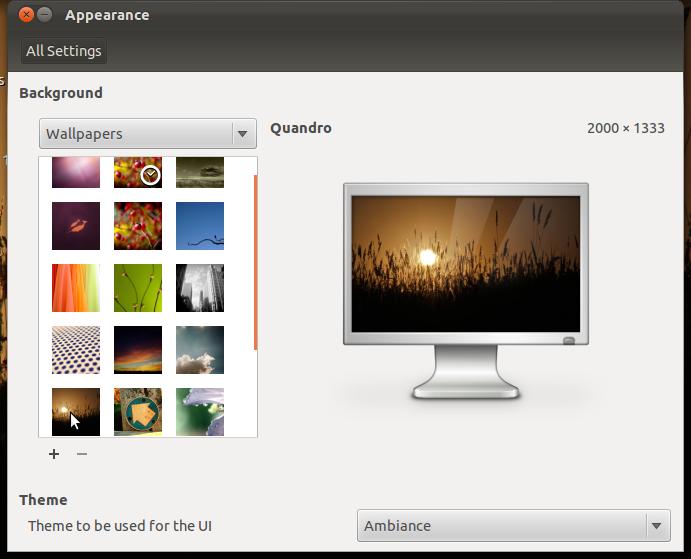
    Appearance Settings
    The Appearance window is simplified. Gone are options for customizing your theme. No more tweaking colors, controls, window borders, icons or pointers. Select a basic theme from a drop down menu.
    Firefox Beta 7 is included in this release and I found it buggy with Adobe Flash 10. The Software Center crashed while trying to install Flash and even after a successful install, it repeatedly crashed Firefox when trying to load a video.
    Some fonts don't render properly in some programs. This may be an upstream problem because I saw a similar bug after a recent Debian update.
    Overall, this release is significantly buggier than previous Ubuntu betas I have tested. With Gnome Shell no longer included, Canonical has demonstrated its commitment to Unity on the desktop. The final beta is due to be released on September 22 and the Official Release date is scheduled for October 13.
    According to Mark Shuttleworth, Oneiric Ocelot is built on daydreams and discipline and with this upcoming release, Canonical continues to lead the way into the future of Linux desktop innovation
    For more information on Ubuntu 11.10 Beta 1, visit the Ubuntu Oneiric Ocelot Wiki.
    Hardware specs:
    • Asus eeepc 900
    • 16 + 4 GB SSD
    • 2 GB RAM
    • 900 MHz Celeron Processor
    • Atheros AR5001 wireless adapter
    • Intel 915GM Graphics Controller
    This article was originally published Sept 14, 2011 in UbuntuManual.org  

      Wednesday, September 14, 2011

      Prominent Linux Servers Hacked


      UPDATE: The Linux Foundation and its sub-domains, including Linux.com have announced they too have been hacked and it appears to be related to the breach of kernel.org, discovered on August 28.
      As previously reported, one of the developers with root privileges, was found to have a trojan on his personal computer.

      The Linux Foundation and Linux.com websites are currently displaying the following warning:

      Linux Foundation infrastructure including LinuxFoundation.org, Linux.com, and their subdomains are down for maintenance due to a security breach that was discovered on September 8, 2011. The Linux Foundation made this decision in the interest of extreme caution and security best practices. We believe this breach was connected to the intrusion on kernel.org.
      We are in the process of restoring services in a secure manner as quickly as possible. As with any intrusion and as a matter of caution, you should consider the passwords and SSH keys that you have used on these sites compromised. If you have reused these passwords on other sites, please change them immediately. We are currently auditing all systems and will update this statement when we have more information.
      We apologize for the inconvenience. We are taking this matter seriously and appreciate your patience. The Linux Foundation infrastructure houses a variety of services and programs including Linux.com, Open Printing, Linux Mark, Linux Foundation events and others, but does not include the Linux kernel or its code repositories.
      Please contact us at info@linuxfoundation.org with questions about this matter.
      The Linux Foundation

      Kernel.org Hacked
      Sept. 2, 2011

      Kernel.org - the Official Linux Kernel Archive announced on its website that it's servers have been compromised. The statement reads, in part :

      “Security breach on kernel.org
      Earlier this month, a number of servers in the kernel.org infrastructure were compromised. We discovered this August 28th. While we currently believe that the source code repositories were unaffected, we are in the process of verifying this and taking steps to enhance security across the kernel.org infrastructure. "

      This revelation is disturbing on many levels. Once again, it proves that even Linux is vulnerable to attack, despite its reputation for superior security. It proves that even the most experienced sys admins can fail in their efforts to ensure the integrity of their networks. It shows the vulnerability of simple human error, like a trojaned laptop, can have wide ramifications and over-dependence on a flawed web security system, like SSL cert signing, leaves all systems at risk. (See this excellent article regarding the recent compromise of Dutch company DigiNotar which an intruded generated 531 fake certificates, including for popular sites such as Google, Facebook and Skype.)

      What Happened?
      Sometime before August 12 an intruder gained access to the Hera server at kernel.org using a compromised user credential. Starting around August 19th, user interactions were logged, and a trojan startup file was added to rc3.d. (Interestingly, an attempt was made to attack 3.1-rc2, but this was blocked for some reason.) SSh files, including openssh, openssh-server and openssh-clients were altered and running live.

      It appears that one of the developers with root access may have had a trojan on his personal computer which allowed an attacker to gain access to his ssh key and root password. The same trojan was found on the servers Hera and odin1, with possible infections of three others.

      The intrusion was detected on August 28 when xnest /dev/mem starting throwing errors. Xnest is an X Window system server and was not installed on the infected machine.

      After the intrusion was detected, the boxes were taken offline and reinstalled from clean backups. The folks at kernel.org were open about the breech and posted details on their website right away. They explain how using git, the exposure to the public should be minimal.

      Git was developed by Linux Trovalds in 2007 as a fast, efficient distributed revision control system. It is used to keep track of software revisions and allow collaboration on projects among developers across diverse networks.

      One of the features of git is its cryptographic authentication of revision history. As Wikipedia explains:
      "The Git history is stored in such a way that the name of a particular revision (a "commit" in Git terms) depends upon the complete development history leading up to that commit. Once it is published, it is not possible to change the old versions without it being noticed. The structure is similar to a hash tree, but with additional data at the nodes as well as the leaves."

      So each revision is named according to its revision history and each of its parent revision histories all they way up to the top level. This creates a 'tree' of revision hashes which contains the entire history of the project. If you change anything, it creates a cascade of changes to the hashes which will throw errors when attempting to merge the changes into the main repository. Attempting to force the changes would result in a separate branch.

      So what does all this mean to Linux users? Are they at risk? Generally, the risks appear small. Most Linux users get their updates through their distos package manager and these are generally signed and maintained on their own servers. Most of the maintainers of these distors use git to update their packages. Therefore, most users can consider themselves safe.

      I have seen some discussion as to whether a user who directly downloaded a kernel tarball using ftp or http between August 12 and August 28, possibly bypassing git, could have received an infected copy of the file. I have found no clear answer to this question as yet. If you have recently built your own kernel, using files from kernel.org, downloaded via ftp or http, you might consider a re-install to be safe. Also, look for errors involving xnest, as this was the clue which led to detection of the intrusion. As noted on the website:

      "Trojan initially discovered due to the Xnest /dev/mem error message w/o Xnest installed; have been seen on other systems. It is unclear if systems that exhibit this message are susceptible, compromised or not.  If you see this, and you don't have Xnest installed, please investigate."

      Linux users like to believe we are nearly immune from malware attack. Occasionally, reality proves this not to be true.

      A bit of history:
      Intrusion into four servers that host the project's bug-tracking system, mailing lists and various Web pages.

      In case you believe those were ancient history, that it can't happen today, consider these:

      August 2007: Ubuntu had to take 5 of its 7 production servers offline after they were being used to attack other servers. The effected servers were found to be out of date on security patches and using insecure protocols (FTP without SSL).

      August 2008: Red Hat servers hacked.

      There is also the infamous Debian SSL flaw in 2008.

      The point here is that no OS is 100% secure. No sysadmin is 100% perfect. Human error, when combined with millions of lines of complex code, will occasionally fail. For now, the Linux community appears to remain safe and git, developed by Linus himself, has done its job.

      Sunday, August 14, 2011

      Setting Up a Free Weather Webcam


      "Everyone talks about the weather, but no one does anything about it." - Mark Twain

      Weather webcam image
      The weather effects our lives everyday and weather websites are among the most heavily trafficked on the web. They tell us whether we will need an umbrella today or what to pack for a trip across the country.

      Weather webcams are always popular and it is easy and free to set one up yourself. Whether you run Windows, Mac or Linux there are tools and hosting available which only requires you own a webcam to be up and running on the web.

      Basically you need three things: a webcam, software which can upload via ftp and a website which will host and publish your images.

      Webcams are ridiculously cheap these days and if you don't have an old one in a drawer somewhere, they are available online or at your local department store for 10.00 and up. Generally, you want the best resolution you can afford with back light and white control, if possible.

      Webcam software is usually included with your webcam or is widely available online. You will need a program which can upload your images to the web via ftp or sftp.

      Free software for Windows is available here:
      http://www.lundie.ca/fwink/

      For Mac:
      http://www.klieme.com/EyeSight.html

      And Linux:
      I use uvccapture, designed for still webcam images, it handles auto-exposure better than software designed for streaming video. It is available in the Ubuntu repositories or you can grab it here:
      https://github.com/csete/uvccapture
      See "My Linux Setup" below for instructions. 

      Camorama Software
      Regardless of the software, the process will be the same: Capture an image, save it to your computer, use ftp (or sftp) to upload it to a remote server, view it online.

      For free weathercam hosting and making the images available online, I use weatherunderground. They will broadcast your images, create a video of the last 24 hours and even provide a weather calendar of the last month which offers videos for each day.

      Ok. Lets get started.

      Plug your webcam into a usb port on your computer. Point the camera out the window. This sounds simple enough, however there are considerations which may complicate your choice of view.

      Direction: Pointing your camera either due west or east will result in direct sunlight on your camera and window glass during part of each day. This usually results in overwhelming glare which can obliterate the image. If possible, it is best to point your camera either north or south so it will not be pointed directly into the sun.

      Distance: USB looses signal strength with a cable over 15' long. This can cause corruption of your images and an unreliable source. Choose a window which you webcam can reach without using an extension or keep the total distance under 15 feet.

      Sky Cam
      Subject: Choose a view which gives the info you are looking for. Are you watching for snow so you know if you need to leave work early? If yes, then make sure you can see the ground. Are you watching the sky for approaching threats of bad weather? Point it toward an open area of sky, preferably in the direction which weather usually approaches (avoiding due west/east if possible).

      Once you have decided on a view, next you will need to create an account with your host. In the case of this article, that will be weatherunderground.
      Go here to setup an account:
      http://www.wunderground.com/members/signup.asp

      Setup your webcam here:
      http://www.wunderground.com/webcams/signup.html

      You can choose to upload images via FTP or URL. This means either you will send the pics directly to weatherunderground via FTP, or point them toward your own website where your webcam already exists. We will be using the ftp option.

      Streamcam Software
      To setup your webcam, you will be asked a few questions:
      First, select the FTP option and give some general information about your organization (if any) and location. Select your timezone. Your address is requested, but general area info is fine. Enter the City, State and Zip Code. Your latitude and longitude will be calculated.

      If you have a Personal Weather Station (PWS) and would like to upload the data, you can enter the address, IP or url here.

      Finally, you can choose to share your camera type and this info will appear on your webcam page.

      Click 'Save Changes' and you will be taken to a page where your camera will be listed with a name like mywebcamCAM1. It will show the location you entered and allows you to add another webcam if you have one.

      Go to your webcam software and use the following settings, per the WunderCam FTP Wiki:
         "FTP SERVER: webcam.wunderground.com
          Username: You will be provided with a Camera ID on the sign up page in the "Your Current Cameras" box.
          Password: You will need to log in with the same password you use to access the Weather Underground site.
          Directory: We actually move the file for you, so if your software requires a directory you should set it as '/', but otherwise leave it blank.
          Filename: We also change the filename of your image, so a default name can be almost anything you'd like but 'image.jpg' is preferred.
          Binary: Please make sure that you are uploading your images through FTP using the binary setting.
          Image Resolution: There is no minimum or maximum resolution. However, the larger the resolution, the larger the file size, so please adjust your resolution and image quality settings to get the best image within the size limitations. "
      If you click on the link which is your CameraID, it will take you to your own webcam page, which displays your current image, date and time, current local conditions, camera type and you will start building a calendar which shows still and videos of each day.


      Bookmark this page or link to it from somewhere else for a reliable free weathercam, accessible from anywhere (including from your smartphone). You will also see your webcam included in their weathercam 'library', which is available by clicking on the 'webcams' tab on the weatherunderground site.

      Last, monitor your new webcam for a few days and adjust as necessary to reduce glare (clean the glass, inside and out), fine tune the image and make it as useful to you and interesting to others as possible. Finally, If desired, you can submit your webcam to a site such as 'EarthCam', to be included in their listings of worldwide webcams.  As their tagline boasts, "Where the World Watches the World".

      As Mark Twain noted, we may not be able to do anything about the weather, but we can monitor it closely and be prepared for it. Your new weathercam makes that easy and fun.

      *********************************

      EDIT: In November, 2017, Weather Underground announced that it was discontinuing it's free webcam hosting. Over the next month, webcams started dropping off or rarely updating. Many users found other hosting or risked losing their web presence.

      Happily, Weather Underground users were vocal about their "passionate support" for their weather webcam network and on December 7, 2017 announced they would "continue to allow users to add webcams to the Weather Underground Network."

      Thank you, Weather Underground for listening to your customers and continuing this valuable public service and a big thank you to WU webcam users who spoke up and saved this network of free weather webcams around the world.


      *********************************

      My Linux Setup

      Install uvccapture, then open Startup Applications and paste the following code into the 'command' section.
      uvccapture -m -t600 -q75 -x640 -y480 -o/home/user/webcam/image.jpg
      This string of commands loads the program and instructs it to refresh the image every 10 minutes (600 seconds), to use compression on the JPG file at 75% quality. It states the webcam resolution, which must be supported by your device. The last argument includes the location to save the image file.

      More info and commands for uvccapture are located here: http://manpages.ubuntu.com/manpages/natty/man1/uvccapture.1.html 

      For basic ftp upload of images, try this simple script.
      Copy and paste the following into a text editor. Edit lines 4, 5 & 6 in the top section and line 5 in the bottom section:
      # vi ftp-run.sh
      #! /bin/sh
      #run this file with ./ftp-run.sh
      REMOTE='your-remote-server.com'
      USER='username'
      PASSWORD='password'
      FTPLOG='/tmp/ftplog'
      date >> $FTPLOG

      ftp -n $REMOTE <<_FTP>>$FTPLOG
      quote USER $USER
      quote PASS $PASSWORD
      bin
      /home/user/webcam-folder
      mput image.jpg
      quit
      _FTP
      Save the file as ftp-run.sh in the webcam folder. Right click on the icon and under Permissions, click to 'Run this file as a program'. I set up a cron job to run this script every 10 minutes with this command:
      crontab -e
          arrow down to bottom

      Paste:
      */10 * * * * cd webcam && ./ftp-run.sh

      Ctrl + x to exit
      Y to save
      Enter

      More fun with your webcam: PortalView Live Desktop Wallpaper for Linux