Showing posts with label Ubuntu. Show all posts

Thursday, July 11, 2013

A Look Back at Ubuntu 5.10: Breezy Badger


What were you doing in October, 2005?

The original Ubuntu 5.10 CD set
as shipped by Canonical
The Mars Reconnaissance Orbiter was speeding towards Mars and clean up had just begun following Hurricane Katrina. A new Disneyland had opened in Hong Kong. A relatively new Linux upstart company called Canonical released Ubuntu 5.10, codenamed 'Breezy Badger'.

Breezy was the third release following 'Warty Warthog' (4.10; October, 2004) and Hoary Hedgehog (5.04). Ubuntu was built on the shoulders of Debian, but designed to be easy to use and updated regularly.

Live CDs were a new idea at this time. Knoppix had been loading a fully functional OS, complete with hardware detection (hurray!) for a while, but it was not designed to be installed on your system. It was Ubuntu who brought Live CDs to the masses.

In those early days, the Live CD and the Install CD were on separate disks. I came upon my old CDs (ordered free from Canonical in those days) and popped the 'Breezy' Live CD into my Asus netbook.

It still booted fine and hardware mostly worked. It didn't find either my wired or wireless connection and screen resolution was stubbornly stuck at 800 x 600, despite instructing it to use 1024 x 768. Both of these issues could probably have been fixed with a boot code or driver search. Mostly, it worked fine and fast. With system requirements of 2 GB hard drive space and 128 MB RAM, that isn't surprising.

Old Gnome 2.12.1 had that retro-looking blocky style and Ubuntu was experimenting with the brown theme which it would be well known for later. Compiz and it's whiz bang features for window compositing were still under development by Novell.

Many of us have ridden this Ubuntu train for many years. Sometimes we like the direction Canonical takes, sometimes we don't, but we usually can still customize our boxes to our liking. You can't help but smile as you look at how far we have come and yet how little has changed.

Here's some screenshots of Ubuntu 5.10 and some familiar apps as they appeared in 2005. Enjoy the trip down memory lane.


The Install CD and Live CD were separate
Early distros required a Linux boot floppy for installation.
Knoppix brought us on-the-fly hardware detection and setup.


Breezy boot screen.
Add your boot perimeters here.

The Breezy Desktop

Hardware support was sketchy in those days and Ubuntu began compiling their Hardware Database Collection.

Gnome 2.12.1 System Menu

Computer window

File System

A simple 'Add/Remove Programs' simplified software installation.

Synaptic looks familiar

If brown doesn't suit you,
you can change it in Theme Preferences

OpenOffice Writer was becoming a viable alternative to MS Word.
Breezy included OO 2.0 Beta 2

Calc could replace Excel for most tasks.

Firefox browser and Ubuntu home page.
It seems they have kept the promises they made all those years ago.

Firefox was gaining popularity with the public.
Breezy sported version 1.07 by default.

Gimp 2.2 provided a free image editing tool which rivaled Photoshop.

AisleRiot Solitaire hasn't changed much.

System Monitor shows the light footprint of those early applications.

Sunday, November 6, 2011

Debian Beckons Ubuntu Refugees to Come Home

Debian Live desktop
Dissatisfaction continues over Ubuntu's choice of the Unity Interface as default and, in the most recent release, no obvious way to return to the old Gnome desktop.

Long time Ubuntu users have been complaining loudly about Unity's lack of stability, limited options and an overall unfinished feel.

Distros that have watched Ubuntu gobbling up the Linux mind-share are suddenly getting a second look by unhappy Ubuntu users seeking alternatives to Unity.

Ubuntu started life as a simplified Debian with an emphasis on desktop usability. Recent Ubuntu releases seem focused on blazing their own trail toward a touchscreen, cloud enabled, widget driven environment. This may prove to be a very forward thinking plan, but it leaves traditional Gnome users hungering for their familiar desktop environment.

I decided to take another look at Ubuntu's parent, Debian. They offer live cd/dvds so I downloaded the i386 dvd .iso of the current stable release 6.0, aka 'Squeeze'. (All the Debian releases are named after characters from the 'Toy Story' movies.)

As a test machine, I scrounged up an ancient Dell Inspirion 1150. This dinosaur sports a 30 GB harddrive, 2.6 GHz processor, Wifi and 512  MB of RAM. Although I love my bling, I did not test compiz on this box due to the low specs.

Debian calls itself "The Universal Operating System" and nothing beats its support for a wide variety of hardware and architectures. Sound, video and ethernet were configured and worked automagically from the live cd.

Clicking the Install icon opens a graphical installer which walks the user through the usual steps: language, location, keyboard and timezone. Enter user and administrator passwords, computer and host names.

The partitioner offers a simple, guided install for a range of configurations. More advanced setup options are available by selecting 'Manual' install. The installation is essentially the same as most gnome-gui based installers and virtually painless.

The desktop is plain, vanilla Gnome 2 with a cartoonish space wallpaper (see above). There are many more wallpapers included by default and Ubuntu users will recognize many beautiful favorites, including 'Cosmos' the space slide show.

Live Earth Wallpaper on Debian/Gnome2
I replaced the default background with a Live Earth wallpaper that updates hourly throughout the day. You can find installation instructions here.
 
Neither ethernet or wifi would work after install. A quick google search found this documented bug and fix. Apparently, networking auto-configure is disabled by default.

I edited (as root) /etc/NetworkManager/NetworkManager.conf to show managed=true and following a restart of network manager, ethernet finally connected.

This Dell machine uses an old Broadcom wireless chipset, notoriously difficult to get working due to the closed nature of their firmware. Thankfully, in September of 2010, Broadcom finally began offering fully open Linux drivers for their chipsets.

Per instructions here, I entered in a terminal: sudo apt-get install firmware-b43-installer .Following a reboot, my wireless network was located and after entering my password, I was online in seconds.

I updated my repositories to include non-free software packages  Replace 'Squeeze' with 'Testing' for more current software updates, but slightly more breakage. Upgrades are incremental or 'rolling.' No need to reinstall every six months.

Debian uses apt for package management, with Synaptic as the familiar front end. Update manager notifies you of available updates and the Software Center makes adding and removing applications easy.

Debian came with gnash, the open implementation of Adobe Flash, installed by default. If you prefer Adobe's version, it is available in the repositories.

User friendly distros like Ubuntu and Mepis were built on Debian's stability, massive software repositories and superior apt package management system. Debian may lack the polish of these derivatives, but it is also a blank canvas, ready to take on your own look and feel. Experiment with new themes, icon sets, wallpapers and more at gnome-look.org

I was pleasantly surprised at the improvements in usability and ease of installation in Debian. Gnome2 seems as comfortable and familiar as an old pair of slippers. I think I will give Debian another try as a Desktop OS and it feels surprisingly good to come home.

A full review of Debian Squeeze can be found here.

Article first published as Debian Beckons Ubuntu Refugees to Come Home on Technorati.

Tuesday, October 18, 2011

Broken Windows? Ubuntu Linux Saves the Day

Ubuntu Live CD Desktop
Article first published as Broken Windows? Ubuntu Linux Saves the Day on Technorati.

You may have heard about Linux. Perhaps you imagined it as a clunky DOS-like command line system, used by uber-geeks in dark basements and server rooms to perform their geeky techno-magic.

In truth, Linux has matured into an easy to use operating system, complete with a vast eco-system of free software that rivals Windows and Mac in simplicity and beauty. It rarely needs a reboot and viruses are virtually unknown.

Canonical has just released Ubuntu 11.10, it's latest version of the popular Ubuntu Linux distribution. It calls itself 'Linux for Human Beings' and it aims to be one of the most newbie friendly Linuxes. It's innovative 'Unity' GUI (graphical user interface) is designed for simplicity and functionality.

Ubuntu is not shareware or spyware. It is a full-featured system which is provided free of charge through 'Open Source' licensing.

Open Source is a philosophy as much as a license. It gives developers the right to use and build upon the progress of previous developers. Unlike proprietary software, the source code is provided for review, modification and distribution.

This type of collaborative development leads to rapid progress and innovation. Linux runs everything from desktop systems and smart phones to toasters and super-computers.

You don't have to install Ubuntu to try it out on your computer. Many Linux distributions are offered as 'Live CDs/DVDs which run completely off your CD/DVD player. They come with a full library of software pre-installed for everything from a MS Office compatible Office suite to photo editing and email.
 
Linux Mint is based on Ubuntu, but includes popular software, like Flash, Java and proprietary video drivers by default.

Simply download and burn the .iso (disk image) to a CD/DVD. Drop it in your computers' CD/DVD drive and reboot. Most everything works 'out of the box.' Video, sound, wifi, printers and networking. You can explore Linux and enjoy all the free software without risk. Simply eject the disk when your done and the computer reboots as before.

These live CDs are a great tool for malware infected Windows computers. In a pinch, they can provide you with a fully functional and secure system, loaded with the latest software and hardware drivers. Use them to back up files from a dying hard drive or fix a borked master boot record. At least you will have a working system until you can get Windows fixed (again).

Use a Live Linux CD to clean an infected Windows system yourself. Boot using a live CD and simply visit a reputable online virus scanner like TrendMicro, Bitdefender, Kaperskey, or use a free malware detection tool kit like the Kaspersky Rescue Disc.

If you choose to keep Linux on your computer, most Live CDs will walk you through installation, either completely replacing Windows or along side it (called dual-booting).

So head on over and download one of these great free systems. Explore thousands of free software titles from games to utilities.  Keep the live CD handy to rescue malware crippled Windows computers or retrieve data from an unbootable hard drive.

You don't have to be a geek to enjoy the freedom that Linux systems offer. They are simple to use, virtually virus free and solid as a rock.

And while you're at it, take a moment to remember Dennis Ritchie, a father of C and Unix, upon which most modern computing is based. He passed away last week, but these fundamental contributions will live on. RIP and thank you from all of us.

Tuesday, October 4, 2011

How Can You Contribute to Open Source?

Open source software is a group effort and requires the participation of everyone in the community including you.  How can you give back to your favorite project if you are not a programmer? There are many ways you can help including participation in the online community, writing and translating, donations or just spreading the word.
Open source projects depend on you. They count on users to help test the packages on a large variety of hardware configurations and software combinations. They rely on your feedback to help the project grow and mature. They depend on your participation in forums and IRC channels to aid end users. They need your expertise to create useful documentation and translations. They depend on your donations to cover the costs of hardware and hosting.

Previously we took a close look at Apport, the bug reporting program included with Ubuntu. It works with Launchpad to coordinate bug tracking and fixes and makes it relatively simple to perform this most basic and vital task to contribute to the community.

Besides bug reports, there are many ways of giving back to the open source causes. Participation in the projects  online community is a good way to start. You don't have to be an expert to visit the projects' forums  or IRC channel and offer suggestions on topics you are familiar with. There is almost always someone newer than you that will appreciate your advice.

Documentation is an on-going chore for developers and assistance is always appreciated. Contact the project maintainer and offer to write readmes or help articles for specific tasks. Create how-tos and tutorials and post them on your blog or youtube. Contribute to the projects' wiki page. Look here for some tips on writing software documentation.

Translators are needed to make software and documentation available in other languages. Contact the project maintainer and offer to help translate the interface or help files. Check out 'Open Source Tools For Translators' to help you get started.
Donating money to worthy open source projects is always welcome. Most developers receive very little compensation for all their hard work. Most supply their own hardware and bandwidth. Many pay for hosting project websites where they interact with end users via forums or message boards. Even small donations help keep the project running.

Here are a few worthy causes to get you started. There are many more:


Finally, advocacy is a powerful tool and just being able to share information about Linux or your favorite software package when the opportunity arises is perhaps the most important contribution you can make. Talk to your friends,  family and coworkers. Post comments in forums and social media.

Burn a few live CDs of a newbie-friendly distro such as Ubuntu or Linux Mint.. Keep them in your car with your music CDs. The next time someone complains about how their computer won't boot or is running so slowly it is barely usable, just pull out one of the live CDs and show them how it works.

Explain that it wont change anything on their computer and comes with a complete collection of software for common tasks. Show them how it can give them a secure, perfectly usable system until they can get Windows fixed, or if they choose to keep Linux, you will help to install it on their machine.

Even if you can't write a line of code, open source depends on you. They need your bug reports, community involvement and donations. They depend on you to spread the word through personal contact and social media. Contributing your time and skills to these projects will benefit you as the user and the open source ecosystem as a whole.

This article was originally published on UbuntuManual.org

Sunday, October 2, 2011

Using Apport to Report Bugs in Ubuntu

Open Source projects depend on an active community of users and developers to contribute their time and skills to improve individual projects and the open source ecosystem in general. All users can contribute to Ubuntu by using Apport to report bugs for fixing.

Ubuntu uses Launchpad for bug tracking and Apport for bug reports. It is designed to be easy for the user as it collects info about the OS, running processes and hardware during crashes. You don't need to be able to reproduce the bug to provide useful information for the developers.

Generally Apport supports two types of bug reports:

1) Launched when you experience a crash. Automatically opens apport and walks you through the reporting process.

2) Initiated by the user when bug is noticed during use of a program but does not cause a crash, for example an application option that does not work as expected or a problem with the user interface.

When a crash occurs Apport creates a persistent and detailed crash report in /var/crash which can be used to determine the problem, even for bugs which are difficult to reproduce. This report contains detailed information about system state and installed software. Apport uses package hooks to collect additional information from log and configuration files.

Sometimes crashes can be hard to attribute to a specific program or service so Apport uses the apport-symptoms package symptom based bug reporting. The UI guides the user through selection of symptoms and uses question and answer scripts to locate the offending package and determine what data to collect.

Bugs which affect large number of users may have already be reported many times and this can cause unnecessary work for developers and users. Apport uses 'Bug Patterns' to recognize specific recurring errors and instead of filing a new report, takes the user to the Launchpad bug page where they can review previous reports and determine if this a new or known bug.

Bugs in X drivers, sound and the kernel should always open a new bug report to be sure your hardware is included in any fix.

Following a program crash, a message will appear offering to help you report the problem. If you were entering confidential information when the crash occurred you should click 'Cancel'.

Most of the time crashes occur when you are performing routine tasks and these should be reported. Click 'Report Problem...' to begin collecting information about what your computer was doing when the crash occurred.

Apport will ask to 'Send problem report to the developers?' Click 'Content of the report' to view the data apport has collected or you can open the plain text document in /var/crash. If you would like to file the report later, you can navigate to this report and double click on it. Apport-gtk will open allowing you to file the bug report.

Click 'Send Report' to upload the report to Launchpad's bug tracking system. Your browser will launch and you will be directed to Launchpad to login or create an account. You are then taken to the packages' bug filing page.

Look over the list of 'hot bugs' and see if your bug is listed there. If the problem has been previously reported, click on 'Mark as Duplicate'. If it is a new bug, click 'Report Bug'.

Briefly describe the the problem and what caused it, if known. Launchpad will search for similar bug reports. If none are found to match your problem, you will be asked for further information. Be sure to include what you were trying to do, what actually occurred and the steps to reproduce the problem, if known.

If the bug is a security risk, click the box 'This bug is a security vulnerability.'

Click 'Extra Options' to add tags to this report, attach files such as logs or screen shots or even submit a patch for the bug.

When finished, click 'Submit Bug Report'.

Apport is launched automatically when a crash occurs as a result of segmentation violation, bus error, floating point exception, etc, but sometimes bugs occur in more minor ways that will not trigger apport. For example perhaps you find a menu item which does not work as expected or problems with the interface. These may not crash the program but need to be reported so they can be fixed.

First go here and check if a specific bug has already been reported for your version of Ubuntu.

Use Alt+F2 to open the 'Run Application' window and type ubuntu-bug <package name> or for a running application, open your System Monitor (System > Administration > System Monitor) and note the process ID number. Enter the process ID into Run Applications instead of the package name for example, 'ubuntu-bug 1664'.

When should you not report a bug? Bug reports are not for support or feature requests or non-Ubuntu packages.

Even small bugs can make software seem unfinished and immature. Each bug squashed contributes to the overall quality of all open source software and enhances its' credibility with the public.

Filing bug reports is an important part of being an involved member of the Linux community. Apport makes it simple to do your part.


This article was originally published in UbuntuManual.org on Sept. 30, 2011

Monday, September 19, 2011

Kubuntu 11.10 Beta Test Drive


Kubuntu Desktop
Canonical recently released its Beta version of Kubuntu 11.10, Oneiric Ocelot, with all eyes toward the final release scheduled for October 13.  We take a look at this release and the new KDE 4.7 Desktop and Netbook Plasma Workspaces.

Kubuntu uses KDE 4.7 with Plama for a beautiful and functional desktop including a new Oxygen icon theme.

I downloaded the .iso here and used UNetbootin to set up a bootable flash drive with the live dvd image. After booting*, The welcome screen offers language selection and choices for 'Try Kubuntu' and 'Install Kubuntu'

I clicked 'Try Kubuntu' and after a few minutes, the desktop loaded elegantly with nice visual effects working out of the box. The delicate login chimes indicated that sound was working properly.
Kubuntu boots into one of two default workspaces, depending on your hardware: Netbook and Desktop views. It also adjusts the level of desktop effects to your hardware so it feels snappy, even on older computers.

Netbook Desktop
Netbook Workspace:
Designed for portable devices, the simplified interface is customized to compliment the usage patterns common in these smaller netbook sized computers.

The default netbook desktop features a search box for quick access to applications, email, your contacts, even websites including Wikipedia.

Below the search box is a row of icons for accessing common tasks. Including:
  • Bookmarks
  • Contacts
  • Multimedia
  • Internet
  • Graphics
  • Games
  • Office
The Top Panel contains:
  • Menu (used for menus for running applications)
  • Search & Launch
  • Page One
  • Notifications and Jobs
  • Clipboard
  • Most Recent Devices
  • Sound Controls
  • Battery Monitor
  • Network Manager (no icon, just tiny arrow)
  • Show Hidden Icons
  • Clock
  • Lock Screen
  • Leave (aka 'Shut Down' menu)
  • Running applications
An icon in lower left brings up panel with options for
  • Add Widgets
  • Configure Search and Launch
  • Shortcut settings
  • Add Page
Widgets
You can choose from thousands of useful and fun widgets to further customize your workspaces, all easily installable and configurable.

Adding Pages is like adding additional workspaces. These can be configured separately with their own widgets and wallpaper. Click the icon at top to move quickly between these pages. The effect is similar to multiple screens in your smartphone.

To switch between the two Workspace views (netbook and desktop) go to System Settings and select the Workspace Behavior icon. Click on 'Workspace' on the side menu and make your choice in the 'Workspace Type' drop down menu.

Desktop Menu
Desktop Workspace:
Desktop view is more like the classic KDE desktop with the capability of adding widgets to further customize your view. There is the familiar Kickoff button in the lower left, which brings up a menu with search capabilities and links to applications and computer locations.  A new breadcrumb addition makes navigation easier.
 
Click on the three colored dots next to the Kickoff menu to open an activity launcher with shortcuts to common desktop tasks. Click 'Add Widgets' to open a sliding panel with dozens of choices, or you can click Get New Widgets/Download Plasma Widgets to open the Plasma Desktop Shell Add-On Installer.

Widgets Menu
Here you can browse through hundreds of additional widgets, including descriptions, details, user ratings and screenshots. Select to order by Newest, Rating, Most Downloads and Installed. Simply click the 'Install' button to add it to your widget list.

Clicking the tiny icon for network manager brings up a new and improved widget with an easy to use interface which lists all available wireless networks. Click on your network and a window opens where you enter your password and wifi connects instantly.

Flash installed easily
Opening the browser Rekonq (both Firefox and rekonq are installed by default), pops up a notification in your task bar that extra packages can be installed to enhance the browser functionality. Clicking the icon opens a window which offers to install Flash (marked with checkbox). Click the 'Install Selected' button and Flash is installed painlessly.

Muon Software Center
Kubuntu uses the Muon Software Center for installing packages. Select from general catagories or use the search tool to browse thousands of software packages. Simplify your choice with the help of user reviews and ratings and view screenshots.

An updated Amarok 2.4.3 is included as the default music player and it features an spiffed up user interface, improved reliability and support for gpodder.net and native support for NFS & SMB/CIFS collections. Opening Amarok, a notification icon appeared and offered to download and install all the necessary plugins.

Gwenview Picture Viewer
Attaching my Android phone, Kubuntu recognized it as portable media player and attached USB device. I chose to open the pictures with Gwenview, the default picture viewer. Gwenview provides basic photo editing options such as Rotate, Resize, Crop and Red Eye Reduction. It also has a new feature which allows it to compare two or more images.

Kubuntu includes the new KDE PIM suite, an integrated personal management system. It includes KMail for mail, RSS and news readers, microblogger, address book, alarm clock,calendar and more. Be sure to back up all your important information, calendars and address book before you migrate to this new system.

This version of Kubuntu is beautiful, intuitive and surprisingly stable. It ships with the versatile KDE 4.7 and includes many new features and updated software. For experienced KDE users or estranged gnome users searching for an alternative to Unity, Kubuntu 11.10 is a breath of fresh air and joy to use.

More information can be found   wiki and  kde.
Hardware Specs:
  • Asus eeepc 900
  • 16 + 4 GB SSD
  • 2 GB RAM
  • 900 MHz Celeron Processor
  • Atheros AR5001 wireless adapter
  • Intel 915GM Graphics Controller
This article was originally published in UbuntuManual.org on Sept. 19, 2011

    A First Look at Ubuntu 11.10 Beta 1


    o·nei·ric :   [oh-nahy-rik] adjective: of or pertaining to dreams.
    oc·e·lot :   [os-uh-lot, noun: a spotted leopardlike cat 

    from Dictionary.com
    Ubuntu 11.10 desktop
    Canonical recently released the first beta of Ubuntu 11.10, Code named Oneiric Ocelot. Ubuntu has ditched Gnome Shell completely and stepped up its committment to the Unity Desktop. As the final release approaches, just one month from today, we spin up this beta and take a first look at the distro that Mark Shuttleworh called, "part daydream, part discipline." 
    The Oneiric Ocelot

    In his blog, "Here be Dragons", Mark Shuttleworth explains the meaning of this releases codename:
    "Oneiric means “dreamy”, and the combination with Ocelot reminds me of the way innovation happens: part daydream, part discipline."
    03/07/2011
    Canonical released the first Beta of Ubuntu 11.10, code named Oneiric Ocelot on September 2.
    Unity is the default desktop, the classic Gnome Shell is not included in this release. Oneiric will use Unity 2D as the fall back mode.
    The DVD has been slimmed down to 1.5 GB and includes language packs and popular applications including Inkscape, GIMP, Pitivi and a more comprehensive LibreOffice Suite.
    The CD image is still available and all the DVD included applications are available through the repositories.

    Gwibber
    New software additions:
    • Thunderbird: New default email client
    • Déjà Dup: New backup tool, easily uploads backups to UbuntuOne.
    • Gwibber: Chat client, with new interface. Integrates easily with Facebook and Twitter.
    Other changes in Oneric:
    • Gnome: Now uses the unstable 3.1.5 version. Eventually moving to 3.2
    • LightDM: New Display Manager which replaces GDM. LightDM is simpler to maintain, faster, more flexible and can be shared with Kubuntu and Xubuntu, each with a customized greeter.
    • Software Center
      Software Center: New interface with "Top Rated" views in all catagories and subcatagories, edit and delete your own reviews, and speedier installation of standalone .deb files (with gdebi). The new software center is easier to use and lists all available software, even packages which aren't in your current repositories, offering to add the repository if needed.
    • The kernel is based on v3.0.3 which boasts mulitple improvements, including more Atheros, Ralink, and iwlagn NIC drivers.
    • Ubuntu Core: A new minimal root file system for creating specialized images and an aid for developer projects.
    • GNU toolchain: Now based on GCC 4.6 for i386, AMD64 and ARM OMAP3/OMAP4 architectures.

    I downloaded the torrent for the i386 DVD and used UNetbootin to set up a live flash drive to test this release.
    Booting seemed slow, but sound, video and wireless all worked out of the box*. It still amazes me how far the Linux community has come toward making hardware detection and configuration virtually painless in most new installs.
    Unity feels faster and more polished. The launcher is docked on the left side of the desktop. It lists icons for:
    • Dashboard
      Dash home (Dashboard)
    • Install Ubuntu 11.10
    • Home Folder
    • Firefox
    • LibreOffice Writer
    • LibreOffice Calc
    • LibreOffice Impress
    • Ubuntu Software Center
    • Ubuntu One
    • Workspace Switcher
    • Trash

    Additional icons are added for open programs and files and these are added to the bottom of the launcher in a 'stack'. This keeps icons for open projects in your view no matter how many you are working on.
    Adding or Removing icons from your launcher is as simple as a right click to select or de-select 'Keep in Launcher'.

    Clicking on the Dashboard icon, brings up a window with shortcuts to Media Apps, Internet Apps, More Apps and Find Files. Below is another row of icons for Firefox, View Photos, Check EMail and Listen to Music.
    This window needs considerable work as the only shortcut that worked was the Firefox icon. The layout did not size correctly for my screen and the last items in the rows were truncated.
    'Stripes' Wallpaper
    The default wallpaper is the same as in Natty, but according to this post, the new default wallpaper will be blue 'Stripes', (see image above) same as the default in Gnome 3. 'Stripes' was not included with this beta.
    The top panel shows icons for network manager (animated as it connects), broadcast menu, power level (which stubbornly stuck at .37% power), clock (which I had to set manually, even after selecting my time zone) and a chat client with an odd [Invalid UTF-8] message (a known bug).

    The last icon is a combination of power and settings. The menu includes System Settings, Display, Startup Applications, Updates Available, Attached Devices, Printers, Webcam and the Lock Screen/Log Out/Suspend/Shut Down options.
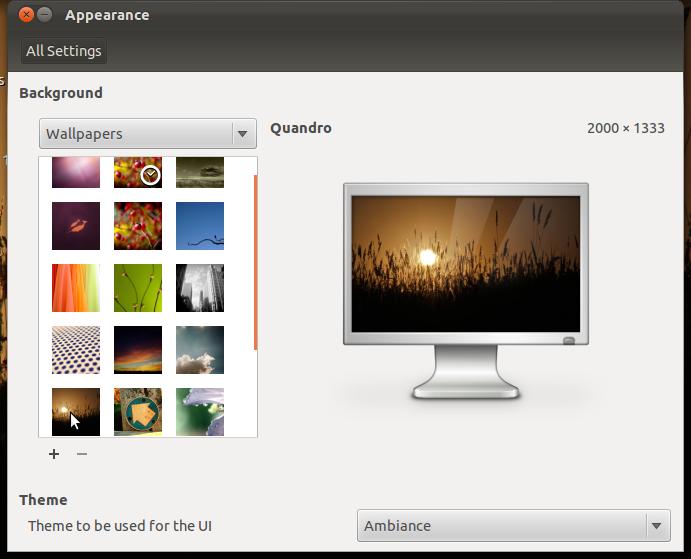
    Appearance Settings
    The Appearance window is simplified. Gone are options for customizing your theme. No more tweaking colors, controls, window borders, icons or pointers. Select a basic theme from a drop down menu.
    Firefox Beta 7 is included in this release and I found it buggy with Adobe Flash 10. The Software Center crashed while trying to install Flash and even after a successful install, it repeatedly crashed Firefox when trying to load a video.
    Some fonts don't render properly in some programs. This may be an upstream problem because I saw a similar bug after a recent Debian update.
    Overall, this release is significantly buggier than previous Ubuntu betas I have tested. With Gnome Shell no longer included, Canonical has demonstrated its commitment to Unity on the desktop. The final beta is due to be released on September 22 and the Official Release date is scheduled for October 13.
    According to Mark Shuttleworth, Oneiric Ocelot is built on daydreams and discipline and with this upcoming release, Canonical continues to lead the way into the future of Linux desktop innovation
    For more information on Ubuntu 11.10 Beta 1, visit the Ubuntu Oneiric Ocelot Wiki.
    Hardware specs:
    • Asus eeepc 900
    • 16 + 4 GB SSD
    • 2 GB RAM
    • 900 MHz Celeron Processor
    • Atheros AR5001 wireless adapter
    • Intel 915GM Graphics Controller
    This article was originally published Sept 14, 2011 in UbuntuManual.org  

      Sunday, July 31, 2011

      Moving from Ubuntu to Linux Mint, Debian Edition

      Linux Mint Debian Edition
      Ubuntu has been as my primary Linux distro since Breezy Badger hit distrowatch in 2005. As a loyal Debian user, I loved the concept of an easy to use Deb, geared toward the desktop. I am far from a 'newbie', having used Linux since 1999. Contrary to myth, power users want simplicity too. We like it when our hardware "just works" or when an upgrade goes flawlessly. Yes, we can often fix things when they go wrong, but we prefer to spend our late nights working on projects we are interested in, rather than just getting our wireless card or sound to work. This ease of use, with the power of Debian just below the surface, has kept me loyal to Ubuntu through the years.

      Now things are changing at Ubuntu. I understand the reasons and respect the work that Canonical and Mark Shuttleworth have done. No one can doubt the huge contribution they have made to the Linux world.

      Mint Menu
      I will leave the debate over Unity vs Gnome, button placement and compatibility with Debian repositories and file structures to others. But, as Ubuntu moves more in its own direction and away from its Debian roots, I find myself again looking for an alternative which still feels like Deb, but includes a polished desktop, multimedia codecs, drivers for popular hardware and a sensible software library. These are the same reasons I tried Ubuntu way back when and are the reasons I recently took the first steps away from Ubuntu and installed Linux Mint, Debian Edition on my netbook.*

      I downloaded the dvd image and used unetbootin to load the .iso to my flash drive. Instructing my bios to boot from USB, the live desktop loaded without a hitch. In just a few minutes, I was booted into an elegant UI (see at top), with a very usable slab menu (mint menu) instead of the traditional Gnome Application, Places and System drop down menus. The chimes at startup told me my sound card had been loaded and was working properly.

      Compiz works smoothly
      A pop up message informed me that my wireless  network was available and after entering my password, it logged in and I was online, painlessly. YouTube videos played out of the box. A simple fix located on the Mint Debian webpage got the touch pad working quickly, including two finger scrolling and right click. Compiz was enabled and in a few clicks my wobbly windows and desktop cube were working smoothly.

      Exploring the main menu, I located a nice Software Manager which offered packages listed in searchable categories with reviews and screen shots. Very nice. Also available was the familiar Synaptic Package Manager, which I had heard was removed from Linux Mint. Not true.

      Software Manager
      An icon in the lower right corner informed me there were updates available from the Mint repositories but these failed with a complaint about broken packages.  However, running apt-get via the terminal allowed me to update/upgrade without a problem. This is fine with me as I prefer Synaptic and apt-get to the Mint Upgrade Tools and the documentation states it is fully compatible with Debian repositories. However, this may be a problem for new users.

      I like this Debian derivative and plan to keep it on my netbook. Eventually, I plan to replace Ubuntu with it on my desktop as well. For now, I am enjoying exploring this minty Debian which may be just the flavor I was looking for.

      *Hardware specs:
      Asus eeepc 900
      16 + 4 GB SSD
      2 GB RAM
      900 MHz Celeron Processor
      Atheros AR5001 wireless adapter
      Intel 915GM Graphics Controller

      Saturday, July 2, 2011

      What is Linux?

      KDE Desktop
      Linux is an Open Source computer operating system that was developed in 1991 by Linus Torvalds as a graduate school project. Due to it's 'open' nature, developers and enthusiasts have been building on this kernel ever since and have created a vast ecosystem of software, tools and desktop environments to suit any need. It is loosely based on Unix and has a reputation for being stable and secure. Many popular products are based on Linux, such as the Android phone and tablet and the Tivo DVR.

      What is Open Source?
      Open Source Software builds on the scientific model of development. Developers are allowed to take the existing software source code and expand it, share it and invite further collaboration with other interested developers. The source code for the software is 'open', that is, available to anyone to examine, use, alter and distribute. This leads to rapid progress in popular software applications and a constantly expanding library of software.

      Generally, Open Source licenses have one main restriction: You cannot distribute the software without also providing the source code. This ensures that the software will remain free for all to use, and allow others to build upon your improvements.

      Is Linux hard to use?
      In the early days of Linux development, it could be very hard to use. The tools and user interface were immature. Hardware drivers were scarce and getting a useful working system could be a challenge. Thankfully, decades of development has brought most Linux distributions to par with both Windows and Mac in terms of user-friendliness and hardware support.

      Gnome Desktop
      In fact, today most popular hardware will work 'Out of the Box' with Linux. Driver support is built into the operating system. No need to keep track of all those hardware CDs. Drivers are rolled into the Linux kernel so you will rarely to have to go driver hunting again.

      Linux offers a variety of Desktop Environments to suit your taste and needs. The most common are Gnome, KDE and XFCE. All offer a complete library of software for basic computing needs. All can be customized to your taste and requirements.

      How do you get software for Linux?
      Linux operating systems usually are pre-packaged collections of software, tools and artwork which together create a 'distribution', aka a 'distro'. Popular distros include Ubuntu, Red Hat (Fedora), Debian, Mint, Slackware and many others. Each major distro provides its own 'package manager' for accessing and installing the huge selection of Linux software. There are literally tens of thousands of programs you can download and install for free with just a click of the mouse. Most distros will automatically keep your installed software updated with version upgrades and bug fixes.

      Is Linux more secure than Windows?
      Linux was built from the ground up for security in a networked environment. It separates regular users from Administrators (called 'root' or 'super user' in Linux) and protects the system from unauthorized tampering. The wide variety of distros with slightly different file structures and processes prevent a software mono-culture which allows malware to spread wildly. The open nature of the source code ensures no hidden commands or back doors will be present. Bugs are found and fixed promptly. There is a saying in the Open Source world that 'Many eyes make all bugs shallow.' In other words, with so many people looking at the code, flaws are discovered quickly. Most Linux users do not use anti-virus/malware software as there are almost no viruses for Linux.

      XFCE Desktop
      How can I try Linux?
      Most modern distos offer 'Live CDs'. These are complete Linux distributions which boot and run from a cd or flash drive. They include most popular software applications including an Office Suite, browsers, image editing, blogging, networking, games and much more.

      The magic of Live CDs is that the operating system and software exists and runs completely from the CD or flash drive. No changes are made to your hard drive or operating system. You simply download the .iso and burn to CD. Simply reboot your computer with the CD in the drive and start exploring Linux. This is a good way to test all your hardware and play with the included software. Check out the distros package manager to see what other programs are available. When finished, simply exit Linux, the CD will eject and your computer will boot back to Windows with no changes to the system.

      If you decide to try Linux long term, the live CD will walk you through installing Linux alone or alongside Windows. The two operating systems can exist happily together on your hard drive, and you can select which you wish to use when booting your computer.

      Another method of trying out Linux is called Wubi. This is available on Ubuntu and allows you to install Linux into Windows just as you would install any other program. Removing it works the same way. Simply uninstall it like any other software using Windows Add and Remove Software Feature.

      Where can I get Linux?
      Linux distributions are widely available for free download on the Internet or by ordering a CD from Linux vendors.

      Which One?
      The variety of distributions available can be daunting. Which one to try? Your needs will guide your choice but most desktop distros offer a similar set of software and basic tools. The major differences are in the Desktop Environments, package managers, inclusion of non-free software and customizations such as themes and artwork. There can be big differences in hardware support among different flavors so if your wireless card is not supported out of the box by say, Fedora, it may be supported by Ubuntu or Mint.

      Business customers may wish to explore Red Hat or Fedora, the free version of Red Hat Enterprise Linux. (RHEL) This distro is widely used in business and the corporation is growing at an astounding rate. They offer desktop and server solutions, including support, primarily to business customers.

      Home Desktop users might consider Linux Mint when exploring Linux for the first time. It is designed to be simple, user-friendly and includes all the multimedia codecs out of the box. The update manager is simplified and customizable. Other newbie friendly distros include Ubuntu, PCLinuxOS, OpenSuse and Mandriva.

      If your tired of fighting viruses and malware, paying good money for commodity software or just ready for a change from your old drab Windows box, give Linux a try. Live CDs make it easy and risk free. Linux is secure and stable. It is used to run the biggest server arrays on the Internet or it is as personal as your home PC. It is developed by users for users and continues to grow and evolve as a real alternative to the Windows world.