Showing posts with label ubuntu 11.10 oneiric ocelot. Show all posts

Monday, September 26, 2011

Hands On With Xubuntu 11.10 Beta

Xubuntu 11.10 Beta 1 Desktop
On September 2, Canonical released beta versions of Oneiric Ocelot for Ubuntu, Kubuntu and Xubuntu.  This is the third article in a series looking at these newest releases. Today we focus on Xubuntu, the lightweight Ubuntu, designed for older computers or those that just want a fast distro with a comprehensive software collection that is easy on system resources.

I downloaded the .iso from here. You can pick between Desktop and Alternate Install CDs, with choices for x86 PCs and 64 bit PC (AMD 64) versions.

Using UNetbootin, I loaded the image to my flash drive and booted into the Xubuntu desktop.

This version uses XFCE 4.8.3 with the Thunar file manager which now supports remote shares browsing and an eject button for removable devices.

The panel has had numerous improvements, including positioning, transparency, an item editor and the ability to create launchers with drag and drop.

The new desktop uses these panel upgrades to create a customized bottom panel which resembles Docky or Cairo Dock in appearance but without the animations or advanced options.

The top panel is similar to the one used in Ubuntu, but sports a small icon on the left which opens the main menu for applications and system settings.

Software Center
Xubuntu comes loaded with a complete software library for most common computing tasks. The included applications and utilities are generally lighter with fewer options than the software included in Ubuntu or Kubuntu but all alternatives are available in the repositories.

Synaptic Package Manager is included along with the Ubuntu Software Center. Using the new Software Center, you can browse by general category or search by name or task. Choosing the right application is easy screenshots and  reviews and ratings from other users.
gThumb Picture Viewer

The new software center provides reviews, ratings, and screenshots from other Ubuntu users. Unfortunately, the Software Center seems to still be rather buggy as it crashed several times as I attempted to install packages. This felt very similar to problems I noticed in Ubuntu 11.10 beta, using the Unity interface.

Kubuntu includes gThumb, a simple picture viewer, but also GIMP for more advanced image editing.

Thunar File Manager
gMusicbrowser is the default music player. It is a simple, easy to use player with many of the features found in heavier programs.

Plugging in an Android phone, Xubuntu recognized it as a USB storage device and launched the Thunar File Manager. I was able to move files easily between phone and computer. It did not recognize the file types or offer to open a picture viewer or music player.

Abiword and Gnumeric are included for Office applications. Both are lightweight but surprisingly full featured programs. Save files in open or proprietary formats, including pdf and MS .doc and .xls file types.

Thunderbird Email Reader

Thunderbird is the the default mail reader and it imported my mail and contacts without a hitch. Mozilla Thunderbird is a full-featured mail program with advanced search and filter capibilities. Tabbed email allows easy movement between multiple messages. Add-ons are quickly installed with the new Add-ons Manager, which provides descriptions, recommendations and pictures.

Onboard on-screen keyboard
Xubuntu now includes 'Onboard', an on-screen keyboard with a full qwerty keyboard, including function and other common keys. Click the orange area to the right to access the number pad and create 'snippets', macros which can be executed with a click.

Firefox 7.0 is included but repeatedly crashed, especially when accessing webpages using Flash. After several restarts, I was able to get Flash installed, despite the Software Center saying it was not available.

Gnome users may find this Desktop Environment slightly familiar, albeit less feature rich. I found it plagued by many of the same bugs I encountered in my review of the Ubuntu/Unity version of Oneiric. I experienced numerous crashes when using the Software Center, Firefox and even the Thunar file manager.

Xubuntu is the minimalist member of the Ubuntu family. It is a full featured distro, designed for those who prefer a fast, lightweight desktop environment, but be prepared for some frustration and bug reports if you decide to test this release.

Find more info at XFCE and Xubuntu Oneiric Ocelot beta1web sites.

*Hardware specs:
Asus eeepc 900
16 + 4 GB SSD
2 GB RAM
900 MHz Celeron Processor
Atheros AR5001 wireless adapter
Intel 915GM Graphics Controller

This article originally appeared at UbuntuManual.org on Sept 23, 2011.

Monday, September 19, 2011

Kubuntu 11.10 Beta Test Drive


Kubuntu Desktop
Canonical recently released its Beta version of Kubuntu 11.10, Oneiric Ocelot, with all eyes toward the final release scheduled for October 13.  We take a look at this release and the new KDE 4.7 Desktop and Netbook Plasma Workspaces.

Kubuntu uses KDE 4.7 with Plama for a beautiful and functional desktop including a new Oxygen icon theme.

I downloaded the .iso here and used UNetbootin to set up a bootable flash drive with the live dvd image. After booting*, The welcome screen offers language selection and choices for 'Try Kubuntu' and 'Install Kubuntu'

I clicked 'Try Kubuntu' and after a few minutes, the desktop loaded elegantly with nice visual effects working out of the box. The delicate login chimes indicated that sound was working properly.
Kubuntu boots into one of two default workspaces, depending on your hardware: Netbook and Desktop views. It also adjusts the level of desktop effects to your hardware so it feels snappy, even on older computers.

Netbook Desktop
Netbook Workspace:
Designed for portable devices, the simplified interface is customized to compliment the usage patterns common in these smaller netbook sized computers.

The default netbook desktop features a search box for quick access to applications, email, your contacts, even websites including Wikipedia.

Below the search box is a row of icons for accessing common tasks. Including:
  • Bookmarks
  • Contacts
  • Multimedia
  • Internet
  • Graphics
  • Games
  • Office
The Top Panel contains:
  • Menu (used for menus for running applications)
  • Search & Launch
  • Page One
  • Notifications and Jobs
  • Clipboard
  • Most Recent Devices
  • Sound Controls
  • Battery Monitor
  • Network Manager (no icon, just tiny arrow)
  • Show Hidden Icons
  • Clock
  • Lock Screen
  • Leave (aka 'Shut Down' menu)
  • Running applications
An icon in lower left brings up panel with options for
  • Add Widgets
  • Configure Search and Launch
  • Shortcut settings
  • Add Page
Widgets
You can choose from thousands of useful and fun widgets to further customize your workspaces, all easily installable and configurable.

Adding Pages is like adding additional workspaces. These can be configured separately with their own widgets and wallpaper. Click the icon at top to move quickly between these pages. The effect is similar to multiple screens in your smartphone.

To switch between the two Workspace views (netbook and desktop) go to System Settings and select the Workspace Behavior icon. Click on 'Workspace' on the side menu and make your choice in the 'Workspace Type' drop down menu.

Desktop Menu
Desktop Workspace:
Desktop view is more like the classic KDE desktop with the capability of adding widgets to further customize your view. There is the familiar Kickoff button in the lower left, which brings up a menu with search capabilities and links to applications and computer locations.  A new breadcrumb addition makes navigation easier.
 
Click on the three colored dots next to the Kickoff menu to open an activity launcher with shortcuts to common desktop tasks. Click 'Add Widgets' to open a sliding panel with dozens of choices, or you can click Get New Widgets/Download Plasma Widgets to open the Plasma Desktop Shell Add-On Installer.

Widgets Menu
Here you can browse through hundreds of additional widgets, including descriptions, details, user ratings and screenshots. Select to order by Newest, Rating, Most Downloads and Installed. Simply click the 'Install' button to add it to your widget list.

Clicking the tiny icon for network manager brings up a new and improved widget with an easy to use interface which lists all available wireless networks. Click on your network and a window opens where you enter your password and wifi connects instantly.

Flash installed easily
Opening the browser Rekonq (both Firefox and rekonq are installed by default), pops up a notification in your task bar that extra packages can be installed to enhance the browser functionality. Clicking the icon opens a window which offers to install Flash (marked with checkbox). Click the 'Install Selected' button and Flash is installed painlessly.

Muon Software Center
Kubuntu uses the Muon Software Center for installing packages. Select from general catagories or use the search tool to browse thousands of software packages. Simplify your choice with the help of user reviews and ratings and view screenshots.

An updated Amarok 2.4.3 is included as the default music player and it features an spiffed up user interface, improved reliability and support for gpodder.net and native support for NFS & SMB/CIFS collections. Opening Amarok, a notification icon appeared and offered to download and install all the necessary plugins.

Gwenview Picture Viewer
Attaching my Android phone, Kubuntu recognized it as portable media player and attached USB device. I chose to open the pictures with Gwenview, the default picture viewer. Gwenview provides basic photo editing options such as Rotate, Resize, Crop and Red Eye Reduction. It also has a new feature which allows it to compare two or more images.

Kubuntu includes the new KDE PIM suite, an integrated personal management system. It includes KMail for mail, RSS and news readers, microblogger, address book, alarm clock,calendar and more. Be sure to back up all your important information, calendars and address book before you migrate to this new system.

This version of Kubuntu is beautiful, intuitive and surprisingly stable. It ships with the versatile KDE 4.7 and includes many new features and updated software. For experienced KDE users or estranged gnome users searching for an alternative to Unity, Kubuntu 11.10 is a breath of fresh air and joy to use.

More information can be found   wiki and  kde.
Hardware Specs:
  • Asus eeepc 900
  • 16 + 4 GB SSD
  • 2 GB RAM
  • 900 MHz Celeron Processor
  • Atheros AR5001 wireless adapter
  • Intel 915GM Graphics Controller
This article was originally published in UbuntuManual.org on Sept. 19, 2011

    A First Look at Ubuntu 11.10 Beta 1


    o·nei·ric :   [oh-nahy-rik] adjective: of or pertaining to dreams.
    oc·e·lot :   [os-uh-lot, noun: a spotted leopardlike cat 

    from Dictionary.com
    Ubuntu 11.10 desktop
    Canonical recently released the first beta of Ubuntu 11.10, Code named Oneiric Ocelot. Ubuntu has ditched Gnome Shell completely and stepped up its committment to the Unity Desktop. As the final release approaches, just one month from today, we spin up this beta and take a first look at the distro that Mark Shuttleworh called, "part daydream, part discipline." 
    The Oneiric Ocelot

    In his blog, "Here be Dragons", Mark Shuttleworth explains the meaning of this releases codename:
    "Oneiric means “dreamy”, and the combination with Ocelot reminds me of the way innovation happens: part daydream, part discipline."
    03/07/2011
    Canonical released the first Beta of Ubuntu 11.10, code named Oneiric Ocelot on September 2.
    Unity is the default desktop, the classic Gnome Shell is not included in this release. Oneiric will use Unity 2D as the fall back mode.
    The DVD has been slimmed down to 1.5 GB and includes language packs and popular applications including Inkscape, GIMP, Pitivi and a more comprehensive LibreOffice Suite.
    The CD image is still available and all the DVD included applications are available through the repositories.

    Gwibber
    New software additions:
    • Thunderbird: New default email client
    • Déjà Dup: New backup tool, easily uploads backups to UbuntuOne.
    • Gwibber: Chat client, with new interface. Integrates easily with Facebook and Twitter.
    Other changes in Oneric:
    • Gnome: Now uses the unstable 3.1.5 version. Eventually moving to 3.2
    • LightDM: New Display Manager which replaces GDM. LightDM is simpler to maintain, faster, more flexible and can be shared with Kubuntu and Xubuntu, each with a customized greeter.
    • Software Center
      Software Center: New interface with "Top Rated" views in all catagories and subcatagories, edit and delete your own reviews, and speedier installation of standalone .deb files (with gdebi). The new software center is easier to use and lists all available software, even packages which aren't in your current repositories, offering to add the repository if needed.
    • The kernel is based on v3.0.3 which boasts mulitple improvements, including more Atheros, Ralink, and iwlagn NIC drivers.
    • Ubuntu Core: A new minimal root file system for creating specialized images and an aid for developer projects.
    • GNU toolchain: Now based on GCC 4.6 for i386, AMD64 and ARM OMAP3/OMAP4 architectures.

    I downloaded the torrent for the i386 DVD and used UNetbootin to set up a live flash drive to test this release.
    Booting seemed slow, but sound, video and wireless all worked out of the box*. It still amazes me how far the Linux community has come toward making hardware detection and configuration virtually painless in most new installs.
    Unity feels faster and more polished. The launcher is docked on the left side of the desktop. It lists icons for:
    • Dashboard
      Dash home (Dashboard)
    • Install Ubuntu 11.10
    • Home Folder
    • Firefox
    • LibreOffice Writer
    • LibreOffice Calc
    • LibreOffice Impress
    • Ubuntu Software Center
    • Ubuntu One
    • Workspace Switcher
    • Trash

    Additional icons are added for open programs and files and these are added to the bottom of the launcher in a 'stack'. This keeps icons for open projects in your view no matter how many you are working on.
    Adding or Removing icons from your launcher is as simple as a right click to select or de-select 'Keep in Launcher'.

    Clicking on the Dashboard icon, brings up a window with shortcuts to Media Apps, Internet Apps, More Apps and Find Files. Below is another row of icons for Firefox, View Photos, Check EMail and Listen to Music.
    This window needs considerable work as the only shortcut that worked was the Firefox icon. The layout did not size correctly for my screen and the last items in the rows were truncated.
    'Stripes' Wallpaper
    The default wallpaper is the same as in Natty, but according to this post, the new default wallpaper will be blue 'Stripes', (see image above) same as the default in Gnome 3. 'Stripes' was not included with this beta.
    The top panel shows icons for network manager (animated as it connects), broadcast menu, power level (which stubbornly stuck at .37% power), clock (which I had to set manually, even after selecting my time zone) and a chat client with an odd [Invalid UTF-8] message (a known bug).

    The last icon is a combination of power and settings. The menu includes System Settings, Display, Startup Applications, Updates Available, Attached Devices, Printers, Webcam and the Lock Screen/Log Out/Suspend/Shut Down options.
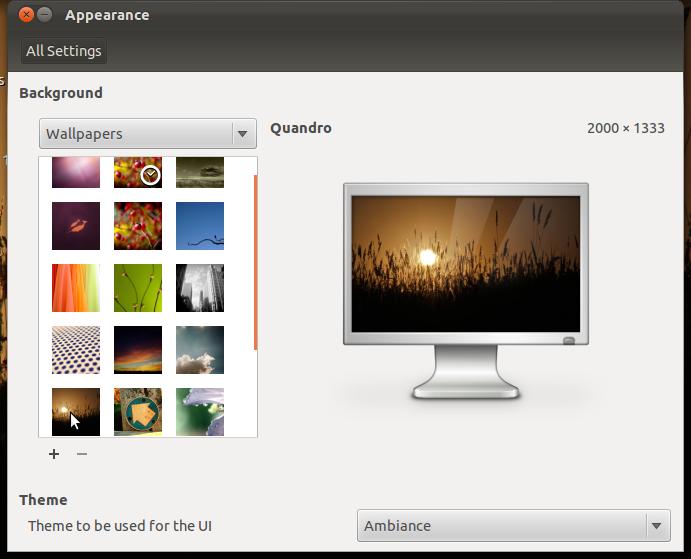
    Appearance Settings
    The Appearance window is simplified. Gone are options for customizing your theme. No more tweaking colors, controls, window borders, icons or pointers. Select a basic theme from a drop down menu.
    Firefox Beta 7 is included in this release and I found it buggy with Adobe Flash 10. The Software Center crashed while trying to install Flash and even after a successful install, it repeatedly crashed Firefox when trying to load a video.
    Some fonts don't render properly in some programs. This may be an upstream problem because I saw a similar bug after a recent Debian update.
    Overall, this release is significantly buggier than previous Ubuntu betas I have tested. With Gnome Shell no longer included, Canonical has demonstrated its commitment to Unity on the desktop. The final beta is due to be released on September 22 and the Official Release date is scheduled for October 13.
    According to Mark Shuttleworth, Oneiric Ocelot is built on daydreams and discipline and with this upcoming release, Canonical continues to lead the way into the future of Linux desktop innovation
    For more information on Ubuntu 11.10 Beta 1, visit the Ubuntu Oneiric Ocelot Wiki.
    Hardware specs:
    • Asus eeepc 900
    • 16 + 4 GB SSD
    • 2 GB RAM
    • 900 MHz Celeron Processor
    • Atheros AR5001 wireless adapter
    • Intel 915GM Graphics Controller
    This article was originally published Sept 14, 2011 in UbuntuManual.org